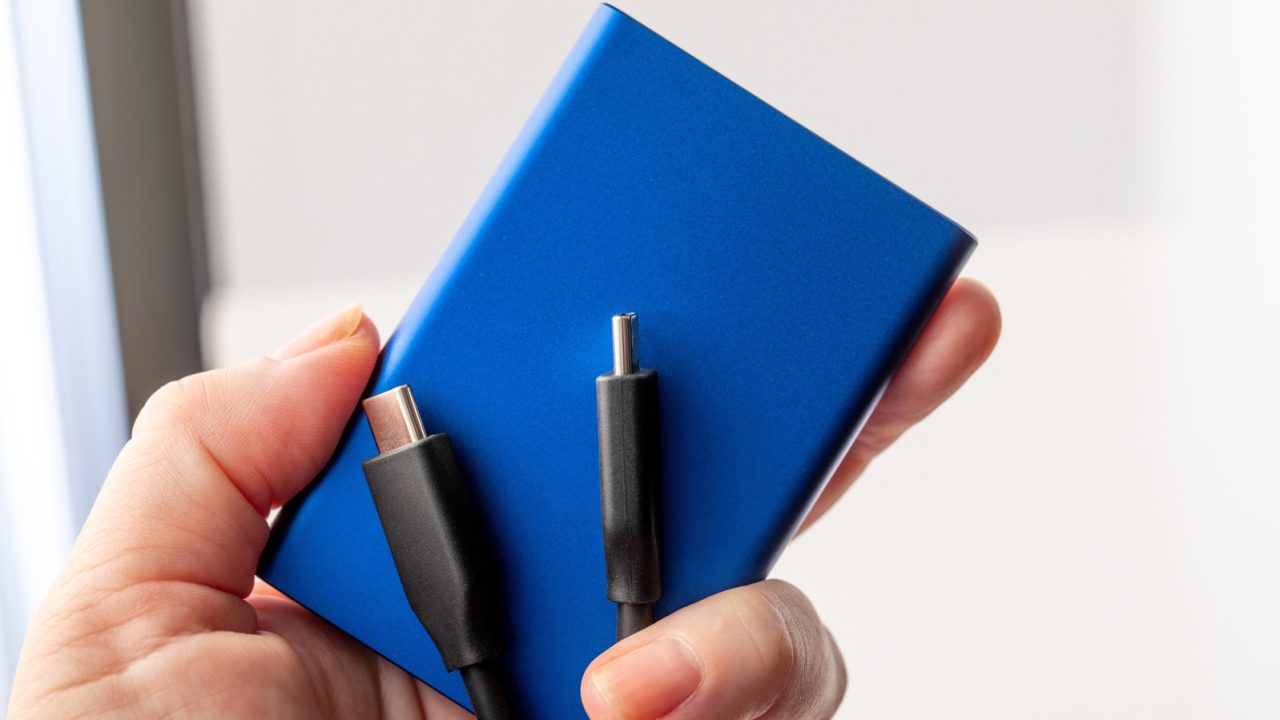
External storage drives have become indispensable for modern data management, offering a convenient way to transfer large files and implement robust backup strategies like the 3-2-1 rule. However, when an external drive fails to be recognized by a computer, it can cause significant stress. Before assuming the hardware is permanently damaged, users can employ several troubleshooting steps to potentially revive the device, ranging from simple physical checks to software-based repairs.
The first step in diagnosing connectivity issues is to rule out faulty external hardware. This involves testing the drive on a different USB or Thunderbolt port, or substituting the cable with a known working one. It is crucial to use cables that support the necessary functions, such as data transfer and charging. Additionally, users should ensure the drive is receiving adequate power, as some computer ports may not supply sufficient voltage; if the drive requires an external AC adapter, it must be connected properly. Testing the drive on a second computer can also help determine if the issue lies with the original host machine.
If the operating system detects the drive but fails to mount it, software configuration often plays a role. On Windows 11, users can access the Device Manager and check the Disk drives section. If the drive appears but is inaccessible, selecting the Volume property and clicking ‘Populate’ may resolve the issue. Users should also open Disk Management to verify if a drive letter is assigned; if not, one can be manually added. In cases where the drive lacks NTFS formatting, reformatting may be necessary, though this results in data loss. Before resorting to reformatting, running the CHKDSK utility in the Terminal with the command ‘chkdsk [drive letter] /r’ can attempt to repair file system errors and recover bad sectors without erasing data.
For macOS users, Disk Utility serves as the primary tool for drive management. By selecting ‘View > Show All Devices,’ users can locate unmounted drives and attempt to mount them manually. If mounting fails, the ‘First Aid’ function can repair minor file system errors while preserving data. Similar to Windows, reformatting is available as a last resort but will wipe all existing content on the drive.
In some cases, the issue may stem from outdated or corrupted hardware drivers. On Mac systems, driver updates are typically integrated into general software updates, accessible via System Settings. Windows users can navigate to Windows Update to install pending updates or manage drivers directly through the Device Manager’s Driver tab. Uninstalling a faulty driver and restarting the computer often prompts the system to automatically reinstall the correct version. If these measures prove unsuccessful, the drive may suffer from physical failure, necessitating the intervention of professional data recovery services or the drive manufacturer.
Skeptical about First Aid fixing anything serious. Usually just tells me the volume needs reformatting. Painful.
My drive just died last week. Wiped all data because I forgot to back up. Total nightmare.
Does the CHKDSK command actually work on Windows 11? I thought that was an older terminal utility.
Tried the different port trick and it actually worked. Saved my presentation files. Thanks for the simple first step.