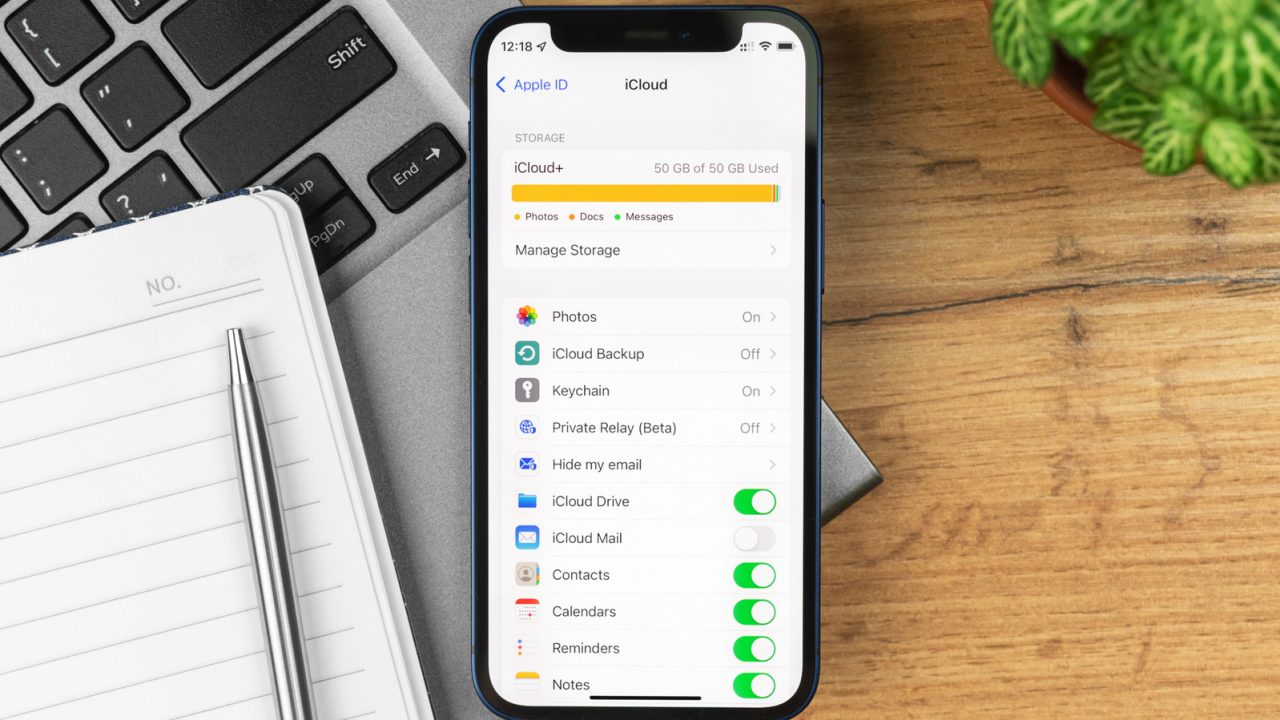
Apple devices come with a limited 5GB of iCloud storage, a cap that remains the same regardless of how many devices a user owns. Since this space is shared across photos, videos, backups, email, and various app data, it fills up quickly. Notably, with the release of iOS 27, images stored in Shared Albums also began consuming this limited storage. While users can pay as little as $0.99 per month to upgrade to 50GB, there are several free methods to clear space.
To begin, users should check their storage usage by navigating to Settings, selecting their name, and tapping iCloud, then choosing Storage or Manage on macOS. This section lists apps by size, with Photos, Mail, Backups, iCloud Drive, and Messages typically ranking as the top users. Users can also review a list of recommendations provided by Apple to identify items for removal.
Five effective strategies for freeing up space include deleting unnecessary videos, which consume more space than static images; adjusting the Message settings to keep conversations for only 30 days or one year; removing backups for devices that are no longer in use; and toggling off iCloud sync for third-party apps that are rarely used. Additionally, checking the ‘Saved to iCloud’ section allows users to disable storage features for specific applications, though this may impact app functionality.
Since Photos and Mail are often the largest consumers of space, managing these areas is crucial. Users can access Photos in iCloud settings to remove duplicates or transfer their library to external hard drives or other cloud services like Google Drive. For Mail, deleting large attachments and emptying the Trash, Junk, and Deleted folders is essential. Finally, users should regularly check the ‘Recently Deleted’ folders in Photos, Mail, iCloud Drive, and Notes. Items in these folders remain for approximately 30 days, allowing users to restore accidentally deleted files but also keeping the storage full until they are permanently removed.



Leave a Reply